7 Easy Ways to Clear iPhone Memory Without Deleting Important Files

Is your iPhone running out of storage, but you’re not ready to delete photos, apps, or other files? The good news is that you can free up space without losing anything important. In this article, we’ll show you how. We’ve prepared a series of storage management strategies that help clean your iPhone memory without requiring you to lose valuable data.
7 Ways to Clean Your iPhone Memory
While deleting unnecessary files is the most effective way to free up space on your iPhone, there are several alternative methods to reduce storage without deleting files. We’ve identified seven such options, which we’ll outline below. Most of these concentrate on optimising photo storage—one of the biggest storage consumers—but we’ll also cover techniques to manage cache, temporary files, apps, and downloaded media. For the best results, we recommend combining these methods to maximise your available storage.
1. Eliminate Duplicate Photos
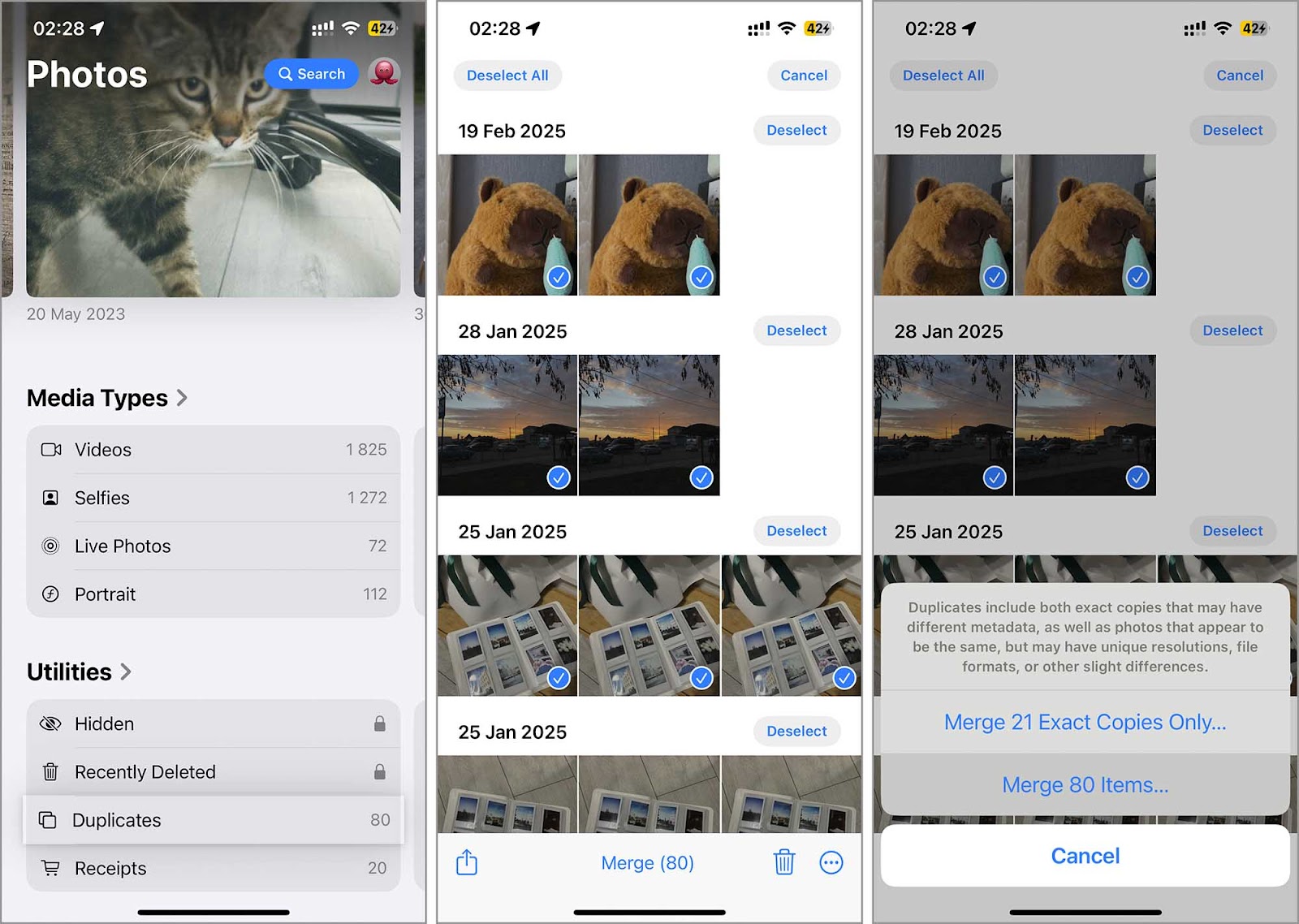
Check your photo gallery for duplicate images. Storing multiple copies of the same photo simply wastes space on your device. Earlier, you had to manually go through all the images to find duplicates. But iPhones with iOS 16 and later have a special feature that makes this task easier. A special folder now groups duplicates together and offers a “Merge” function, which automatically selects the best photo from each group and moves the others to the Recently Deleted folder.
Here’s how to use this function:
- Open the Photos app on your iPhone.
- Scroll down and tap on the ‘Duplicates album.’
- Here, you will see groups of duplicate photos. Tap on a group to view the photos.
- Press the Merge button. This will save the best photo and move the other duplicates to the Recently Deleted folder.
- To merge all duplicates at once, tap the Select button at the top-right corner of the Duplicates album, then select Select All, and press the Merge button at the bottom of the screen.
- Confirm your action if prompted.
However, your iPhone likely has more similar photos with slight differences rather than exact duplicates. Unfortunately, the built-in iOS tool only detects identical copies, so it won’t help with these. To find and delete unnecessary similar photos, you’ll need a specialized cleaner app for your iPhone. Most of these apps use AI algorithms to identify images with the same object but with lighting or camera angle variations. Unlike the iOS function, they also let you manually select which photos to keep and which to delete, giving you more control over your photo library.
2. Convert Live Photos to Still Images
Another type of photo that takes up more space than standard images is Live Photos since they include motion effects and sound. To free up memory on your iPhone, you could delete them—but didn’t we say you wouldn’t have to delete anything? That’s right. Instead, we’ll show you how to convert Live Photos into still images. This way, you keep the photo while removing the extra motion and audio, freeing up space without losing the picture itself.
Here’s how to convert a Live Photo to a still image:
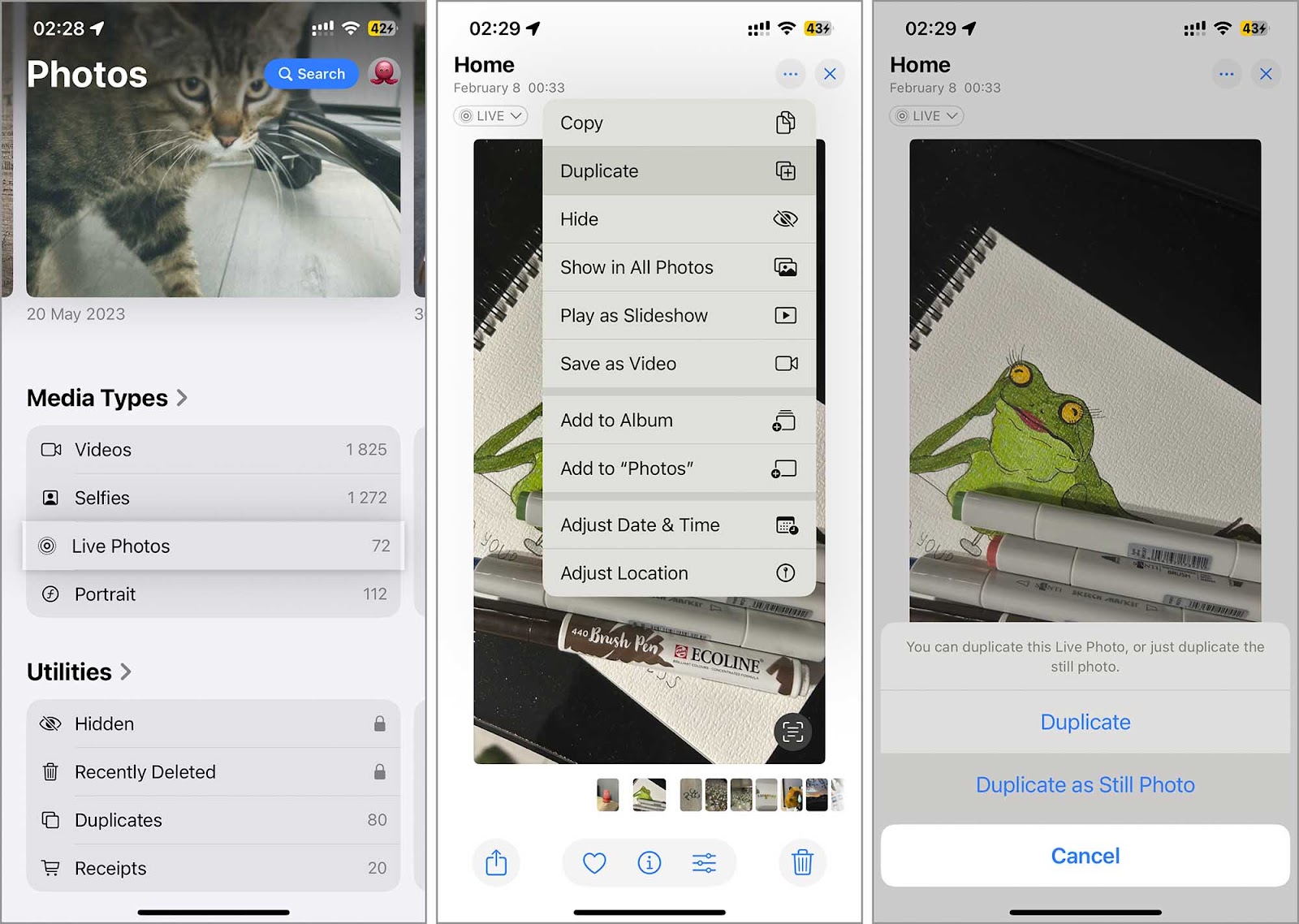
- Open the Photos app and navigate to your Live Photos album.
- Select the Live Photo you wish to convert.
- Tap the three dots icon at the top of the screen and select Duplicate from the options.
- Choose ‘Duplicate as Still Photo’ from the duplication options. This action creates a still version of the Live Photo.
- Return to the original Live Photo in your album and tap the Trash icon to delete the original Live Photo, thereby freeing up space.
3. Clear the Recently Deleted Folder
All photos and videos you delete from the Photos app move to the Recently Deleted album, where they stay for 30 days. This folder exists to help you recover files in case you delete them by mistake. However, while these files remain in the album, they still take up storage space. If you want to clear memory on an iPhone immediately, you can manually clear the folder instead of waiting a full month.
Here’s how to clear the Recently Deleted folder:
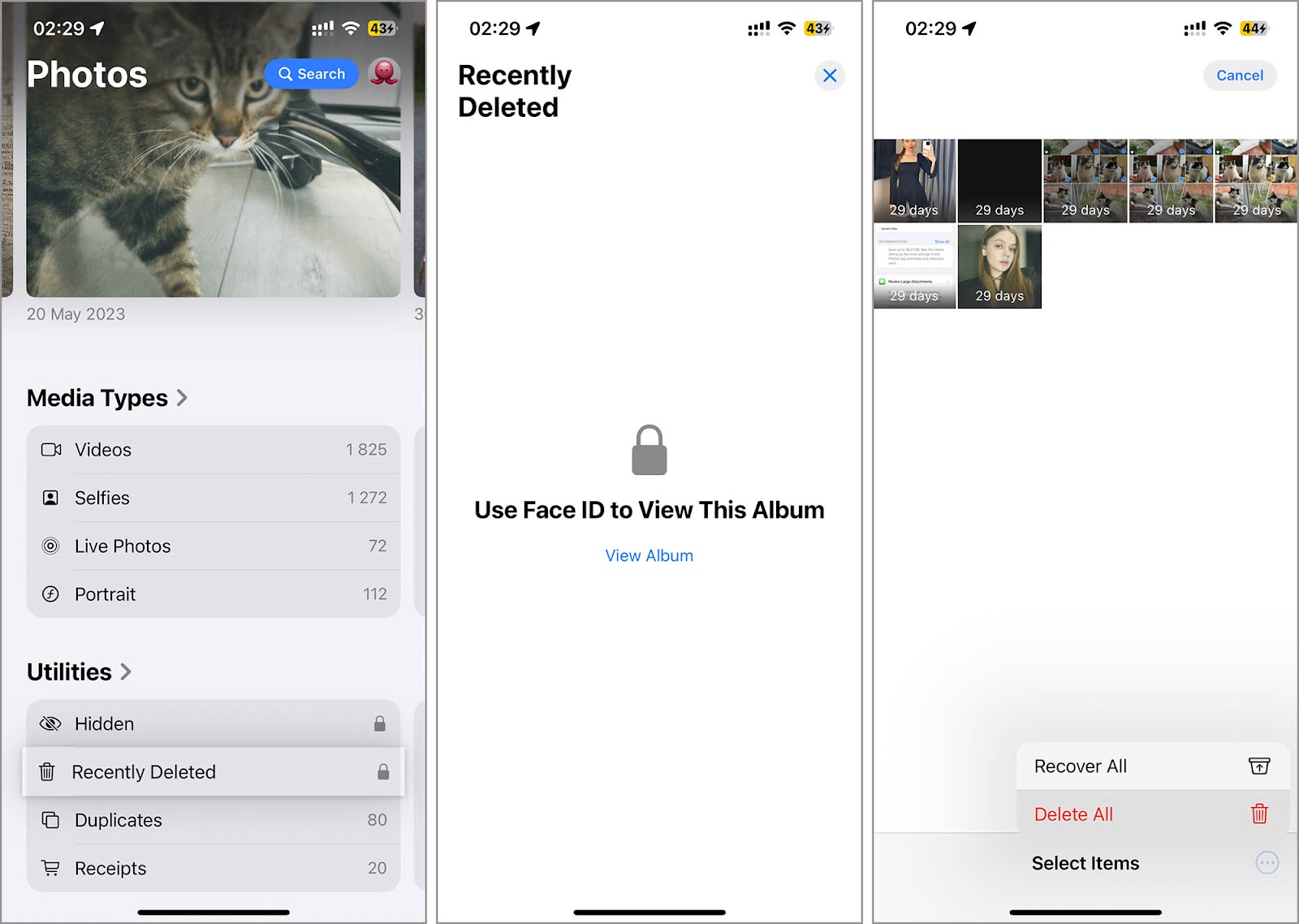
- Open the Photos app, scroll down, and select Recently Deleted.
- You may need to enter your password or use your Apple ID to access this folder.
- Tap Select in the top right corner, then choose Delete All to remove all items, or select individual photos or videos to delete.
- Confirm the deletion to remove the files from your iPhone storage permanently.
The same rule applies to the Files app. If you’ve recently deleted files there, be sure to empty the Recently Deleted folder to free up even more space.
4. Activate iCloud Photo Optimisation
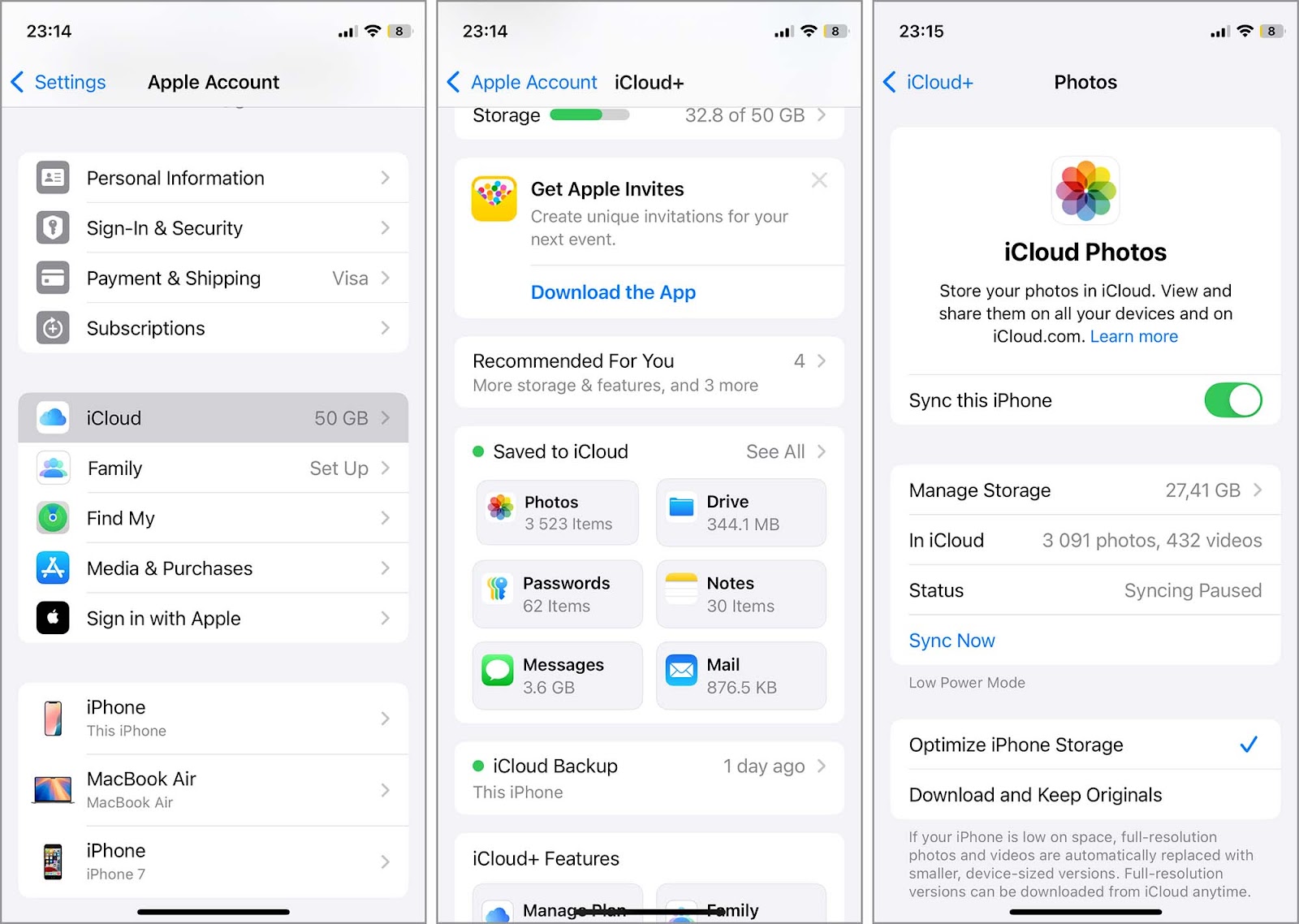
If you don’t want to spend time deleting duplicates and Live Photos, consider turning on the Optimize iPhone Storage feature if you haven’t already. This setting keeps only thumbnails of your photos and videos on your device while storing the full-resolution versions in iCloud. However, keep in mind that iCloud offers just 5 GB of free storage—if your photo library exceeds that, you’ll need to upgrade to an iCloud+ plan.
Here are how you can enable iCloud Photo Optimization:
- Open the Settings app on your iPhone, tap your name at the top, and then select iCloud.
- Choose Photos from the list of apps using iCloud.
- Toggle on ‘Optimize iPhone Storage.’ If your iCloud storage is full, the system will prompt you to manage your storage or upgrade to iCloud+.
- To purchase additional storage, return to the main iCloud menu, select Manage Storage, and tap Change Storage Plan.
- Choose the iCloud+ plan that suits your needs and follow the prompts to complete the purchase.
5. Clear Browser Cache
Another way you can clear memory on your iPhone without deleting anything important is to clear your browser cache. Browsers store temporary files—like images, scripts, and other media—to help websites load faster when you revisit them. If you browse frequently, this cache can build up over time and take up more space than you might realize.
Since Safari is the default browser on iPhones, we’ll walk you through clearing its cache. If you use a third-party browser like Chrome or Firefox, the process is similar, but you’ll need to do it through the browser’s app settings rather than the iPhone’s system settings.
Here’s how to clear the Safari cache:
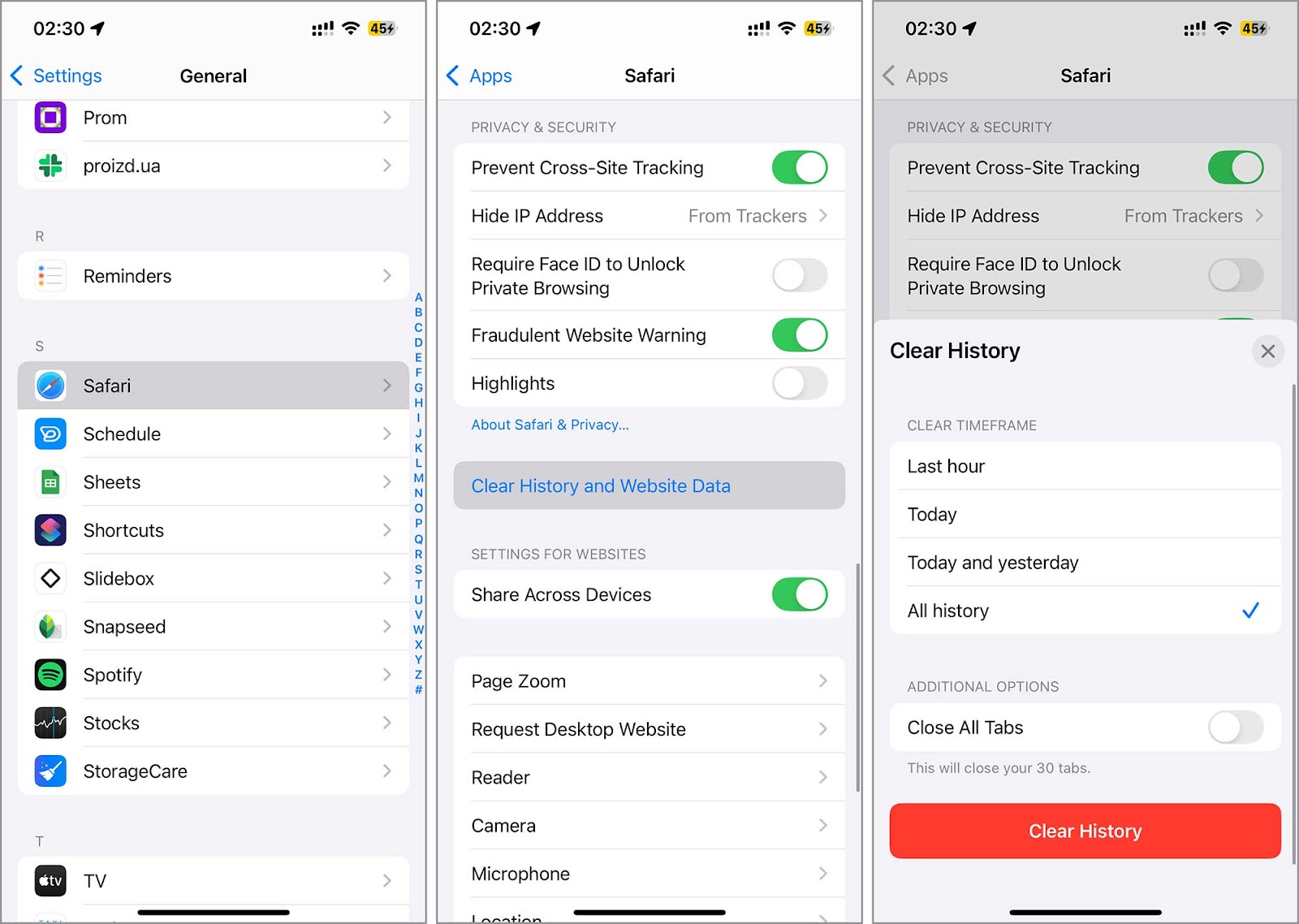
- Open the Settings app on your iPhone. Scroll down and tap ‘Apps’.
- In the list of all applications, find and tap on ‘Safari.’
- Scroll to the ‘Privacy & Security’ section and tap ‘Clear History and Website Data.’
- A dialog box will appear; here, you can choose the time range for which you wish to delete the cache. Select the appropriate period.
- Tap ‘Clear History’ to confirm. This action will remove all browsing history, cookies, and cached files from Safari for the selected period.
After clearing the cache and web data, you’ll need to log back into any accounts you were previously signed into, as this information gets erased.
6. Manage App Storage Without Deleting Apps
Besides browsers, apps like social media, messaging, and games also accumulate cache and temporary files over time. While deleting the app entirely is the most effective way to clear this data, we’re concentrating on methods that don’t involve full removal. A good alternative is the “Offload App” function. This option removes the app itself but keeps all associated data. When you reinstall the app, everything is restored—so you won’t lose game progress, templates in editing apps, or other saved settings.
Here’s how to use the Offload App function:
- Open the Settings app on your iPhone.
- Tap General, then select iPhone Storage.
- Scroll through the list and tap ‘Apps.’ Then, select the app you want to offload.
- Tap Offload App, then confirm by tapping it again in the dialog box that appears.
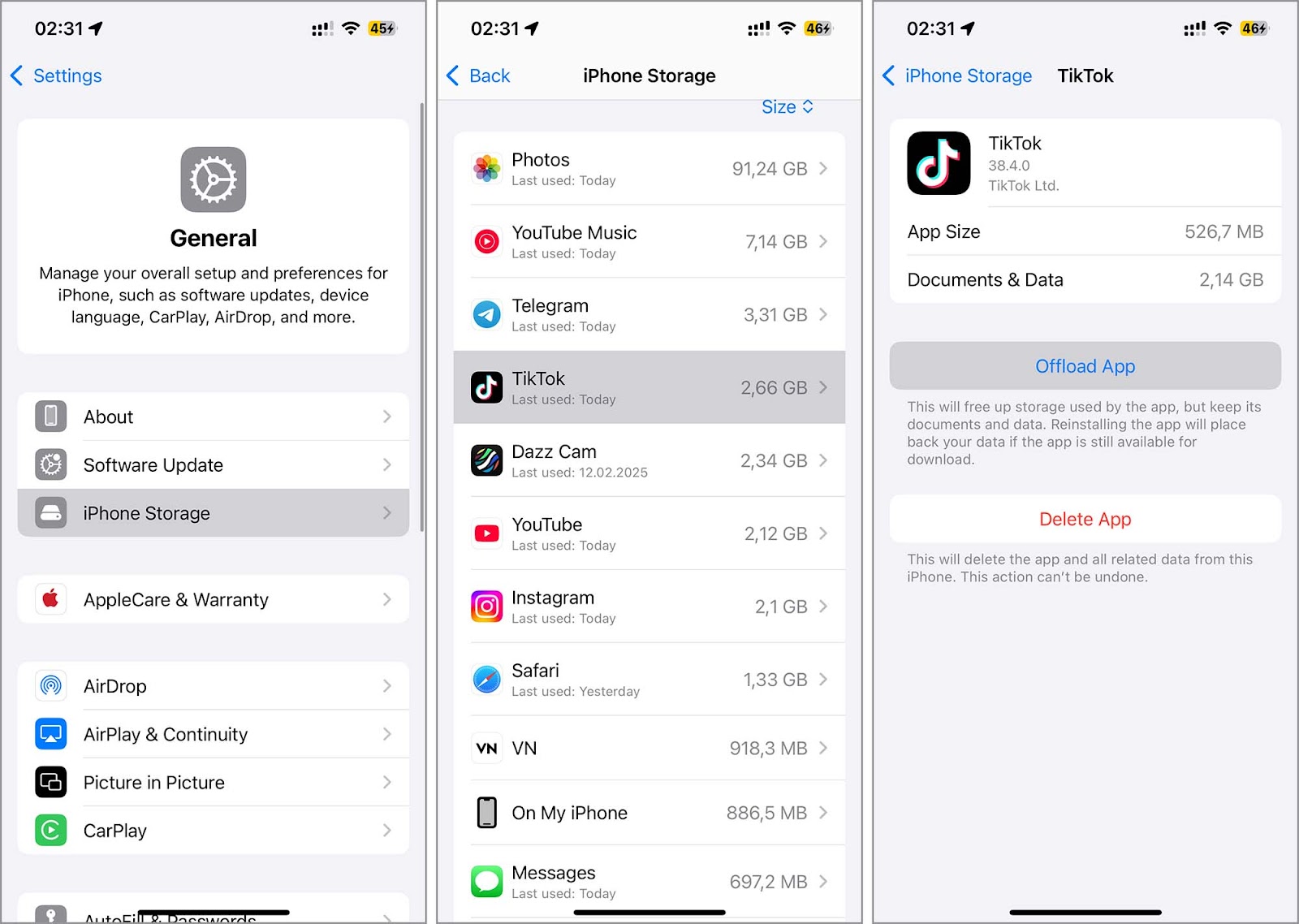
If you find apps you no longer use or even forgot about, deleting them completely is a great way to free up space. To do this, go to the iPhone Storage menu, select the app you want to remove, and tap Delete App (just below the Offload App option). This will erase the app along with all its stored data, freeing up more space on your device.
7. Optimise Media Storage with Streaming Apps
The last point isn’t really a method—it’s more of a tip. If you download music and movies for later, try using apps that let you download files for offline access directly within the app. This way, your phone won’t store the full-size files; it’ll just hold the necessary access files, which saves you a lot of space.
Here is a list of recommended applications for managing different types of media:
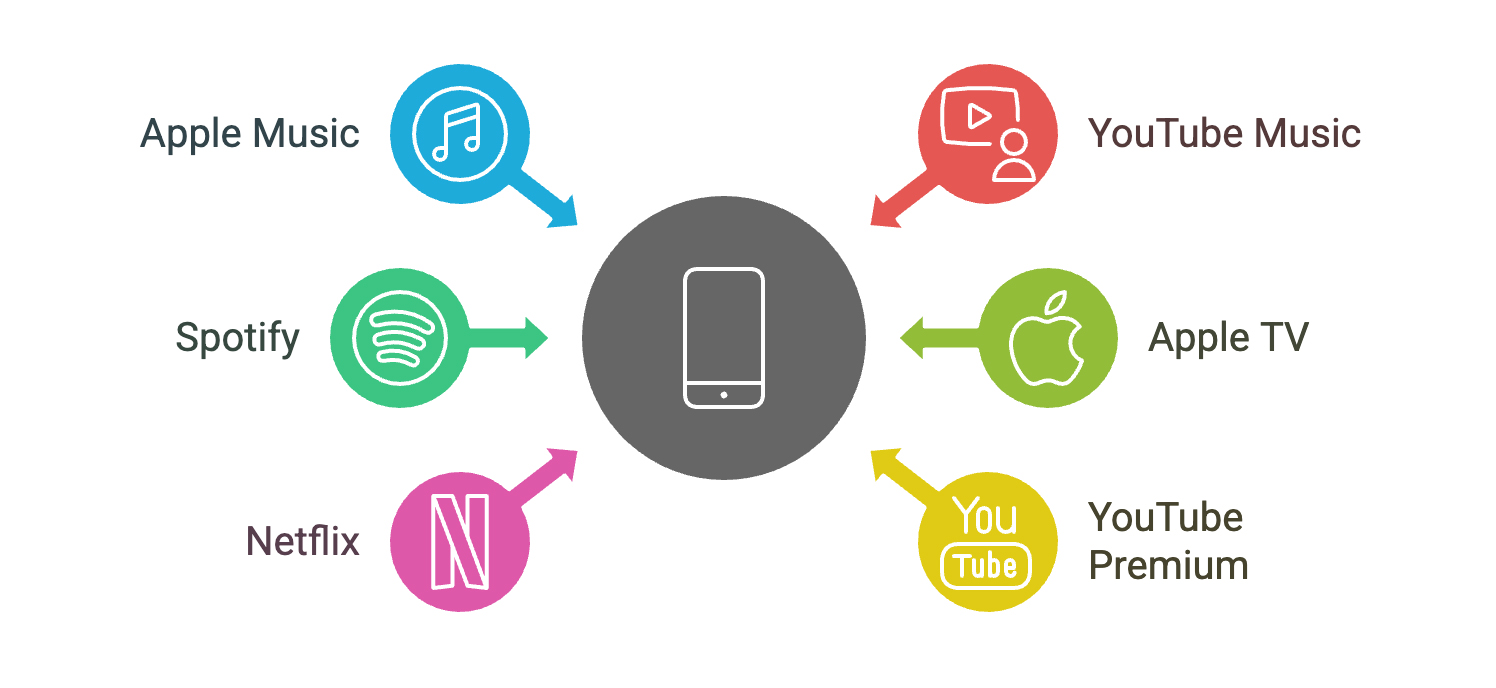
- For a smarter way to listen to music without taking up too much iPhone storage, we recommend using streaming services like Apple Music, YouTube Music, or Spotify. All apps let you download songs and playlists for offline listening, but the files stay within the app’s cache rather than clogging up your device’s main storage.
- To watch movies and shows, apps like Apple TV and Netflix offer offline viewing options and allow you to download content directly within the app. This means you can watch your favourite shows without permanently using up space on your iPhone. YouTube Premium also provides offline video downloads, which is great for saving both data and storage.
- If you like reading or audiobooks, consider using apps like Apple Books or Audible. These platforms let you download books and audiobooks for offline access, so you can carry a full library without overloading your iPhone’s memory.
However, as you use these platforms, make sure to periodically delete any downloaded content you no longer need.
Conclusion
In this article, we’ve covered several ways to free up space on your iPhone without deleting important data. While each method helps reclaim storage, no single solution is the most effective on its own. Since these techniques avoid outright file deletion, the storage savings are naturally smaller, so the best results come from combining all these strategies for a more thorough cleanup.
However, your storage will fill up again as new files accumulate. When that happens, consider taking a more radical step. Go through your files, keep only what’s necessary, and remove everything else to guarantee your iPhone stays clutter-free and runs efficiently.

George Patient
George is the founder and editor of Merch Mates, writing about film, TV, gaming and the Disney parks.
You might also like

How Gamers Are Using AI to Create Viral Gameplay Highlights

How to Unlock Achievements in Marvel Rivals

AI and Fashion Fantasy: Designing Clothes for Mythical Creatures and Alien Worlds

Designing Your Dream Game Room or Fan Cave in 2025

How to Create a Memorable Merch Table or Fan Booth

How to Travel Smart for Conventions, Gigs, or Tournaments

Craps on the Big Screen: Films That Made the Game Iconic